
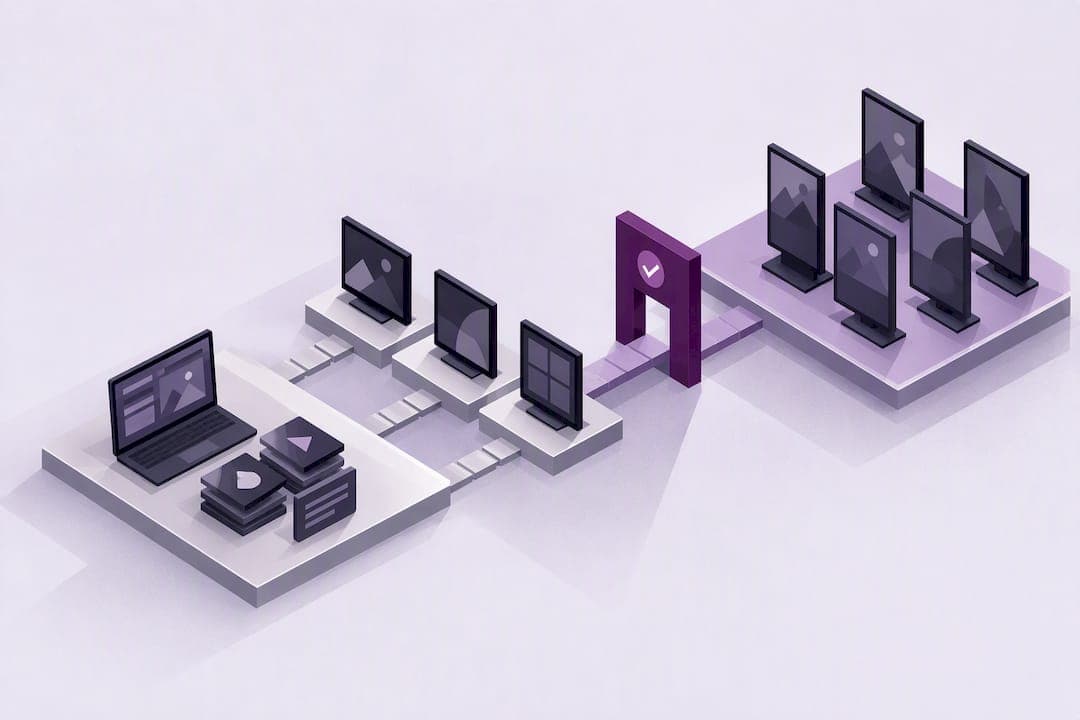
Yes, Samsung Tizen (Smart Signage) is a purpose-built digital signage platform that runs embedded HTML5 and Chromium playback and supports managed CMS players or custom apps. Before rollout, confirm the exact model and Tizen generation, then test the CMS player on the oldest device in the fleet.
TL;DR:
- Confirm the exact Tizen version and model before deployment, as support for codecs, DRM, and features varies significantly across generations.
- Test the CMS or custom app on the oldest display in the fleet to ensure compatibility and prevent costly rollout issues.
- Use wired networking and enable remote management settings early to ensure reliable operation and easier troubleshooting.
- Validate media support, streaming protocols, and DRM on each specific Tizen version to avoid silent playback failures.
- Consider using impressBox for streamlined fleet management, natural language scheduling, and proactive monitoring to reduce operational complexity.
Table of Contents
- What Tizen for signage actually is
- Model, Tizen generation, and compatibility checks you must do
- Software approaches: managed CMS player vs custom Tizen app
- Step-by-step quick setup for a Tizen signage display
- Media, streaming, and codec considerations
- Troubleshooting and best practices for reliable deployments
- Why consider impressBox for Tizen deployments
- Operator perspective: when to choose embedded Tizen vs external players
- How impressBox helps manage Tizen fleets
- FAQ
- Sources
What Tizen for signage actually is
Samsung's Smart Signage platform is a standalone embedded system, not a consumer TV running an app. Displays begin showing content once connected to the network, and the platform documentation describes support for HTML5, ECMAScript 6, and Chromium web rendering as the core playback method.
Beyond browser-based content, Tizen supports WebAssembly for performance-sensitive logic and native or .NET application development for operators who need direct hardware control. This matters for interactive kiosks, sensor integrations, or custom data feeds that a browser alone cannot handle efficiently.
On the operational side, the platform handles on-board system-on-chip processing, multi-zone layouts, scheduled playlists, and remote app control. These capabilities are what separate signage-grade Tizen displays from standard smart TVs repurposed for content loops.

Model, Tizen generation, and compatibility checks you must do
"Tizen-compatible" is not one fixed capability. Samsung's own general specifications note that platform behavior differs by model and by Tizen version, which means two displays carrying the same OS name can behave differently once content starts playing.
Run these checks before any purchase order or rollout:
- Confirm whether the unit is a commercial SSSP or Tizen signage model, not a repurposed consumer panel.
- Identify the exact Tizen version and compare it against your CMS vendor's tested-model list.
- Verify per-version support for media codecs, DRM, screen orientation, autostart, and remote control APIs.
- Install and run the CMS player on the oldest device in your current estate, not just a new sample unit.
Some DRM clients, including PlayReady, Widevine Classic, and the Verimatrix Web Client, have shifted or deprecated support across Tizen versions, so protected content needs its own test pass.
Pro Tip: Base purchasing decisions on the CMS player's documented tested-model list rather than trusting the "Tizen" label on a spec sheet.
Software approaches: managed CMS player vs custom Tizen app
Most organizations choose between two paths: a managed CMS player or a custom-built Tizen application. Each carries different maintenance and risk profiles.
- A managed CMS player gives remote scheduling, monitoring, and content updates without touching device firmware, which keeps day-to-day operations simple.
- A custom app is justified when the deployment needs bespoke interactivity, specialized hardware integration, or codec handling the CMS player does not support.
Samsung's migration guidance from SSSP to Tizen notes that app compatibility is version-specific, which is one reason many operators favor a mature CMS player over maintaining bespoke code across display generations. Distribution for custom apps runs through Samsung's signage app channels and signed packaging, rather than ad hoc sideloading in production. For fleets mixing older SSSP units with newer Tizen displays, migration planning should happen before a single CMS rollout, not after.
Step-by-step quick setup for a Tizen signage display
Getting a display from unboxing to scheduled playback with monitoring enabled follows a consistent sequence:
- Select a commercial signage model and confirm its Tizen version against your CMS vendor's supported list.
- Connect the display to a wired network connection where possible, since wireless adds a failure point in fixed installations.
- Enable autostart and any remote management features in the display's signage settings menu.
- Install the CMS application from the supported channel, or load a signed custom Tizen app if one is required.
- Publish a simple test playlist and confirm orientation, resolution, and scheduling behave as expected.
- Turn on device monitoring, proof-of-play logging, and alerting before the display goes live in a public location.
Each step matters more on a fleet than on a single unit, since a misconfigured template at step five repeats across every connected screen.
Pro Tip: Run the full six-step sequence on one pilot display for at least 48 hours before cloning the configuration to the rest of the fleet.
Media, streaming, and codec considerations
Playback problems in the field usually trace back to assumptions about codec or streaming support that do not hold across Tizen versions. Samsung's signage video specifications publish per-version tables covering containers, streaming engines, and DRM behavior, and these tables are the reference point, not a generic spec sheet.
Key checks before rollout:
- Confirm container and codec support, including fMP4, HLS, and MPEG-DASH, against the specific Tizen version in use.
- Test DRM-protected streams on the target model, since client support for PlayReady and similar systems varies by version.
- Validate subtitle formats and trick-play or seek behavior, which differ across Tizen generations.
Samsung's signage video specifications show that streaming engine and DRM support vary by Tizen version. A codec that plays cleanly on one generation can fail silently on another, which is why testing happens per model, not per OS name.
Troubleshooting and best practices for reliable deployments
Reliable fleets share a few operational habits that reduce site visits and downtime.
- Use proactive device monitoring so a failed display triggers an alert before a customer notices a blank screen.
- Prefer wired networking to Wi-Fi for fixed installations, and stage firmware or OS updates on a test group first.
- Version-lock the CMS player across the fleet and keep an offline-play fallback for network outages.
- Maintain a rollback path for any update that breaks playback, orientation, or scheduling.
- Document test cases for playback, orientation, DRM, and captions, and run them against a staging pool before wide release.
These steps turn signage management into a maintenance routine rather than a string of one-off fixes.
Why consider impressBox for Tizen deployments
ImpressBox supports Samsung Tizen displays and replaces traditional dashboard navigation with natural language commands, which reduces the configuration errors that come from manual menu-driven workflows. Operators can issue plain-language instructions to schedule content, check display status, or adjust playlists across a fleet.
The platform includes display monitoring, video adaptation for different screen formats, and device control features built for scalable deployments across various environments. Its architecture is designed to support networks ranging from a handful of screens to large multi-site estates.
Operator perspective: when to choose embedded Tizen vs external players
Embedded Tizen is the stronger default for new commercial installs. It removes an extra hardware component and keeps the display itself responsible for playback, which simplifies both procurement and ongoing support.
External media players still make sense for legacy estates or specialized codec needs that a given Tizen version does not support. For most fleets, the deciding factor is not the OS, it is whether the exact model and CMS pairing has actually been tested.
— impressBox
How impressBox helps manage Tizen fleets
Running a Tizen fleet well means less time fighting menus and more time confirming playback. ImpressBox applies its no-UI, natural language workflow to Samsung Tizen displays, pairing proactive monitoring and AI-driven video adaptation with the model-level compatibility checks covered above.

For a team managing more than a handful of Tizen screens, a pilot deployment is the practical next step: connect one display, confirm the tested-model pairing, and see how the platform handles scheduling and monitoring before scaling to the full network. Details on current deployment options are available on the ImpressBox site.
FAQ
Is Samsung discontinuing Tizen?
Samsung has not announced a discontinuation of Tizen for its Smart Signage displays, and the platform remains the active foundation for its commercial signage line. Operators should still track version-specific documentation, since capabilities and supported features change across Tizen generations.
Can I use my smart TV as digital signage?
A consumer smart TV can display content on a loop, but it generally lacks the commercial signage features built into Samsung's dedicated Smart Signage models, such as extended duty cycles and remote device management. For any public-facing or unattended deployment, a commercial signage display is the safer choice over a repurposed consumer television.
What signage software is compatible with Samsung TVs?
Samsung's Tizen-based signage displays support browser-based CMS players built on HTML5 and Chromium, along with custom native or .NET applications distributed through Samsung's signage app channels. Compatibility depends on the specific Tizen version, so checking a CMS vendor's tested-model list before deployment is standard practice.
What does Tizen stand for?
Tizen is the name of Samsung's Linux-based operating system used across its smart TVs, wearables, and Smart Signage displays. It is not an acronym; it refers to the platform itself, which runs the HTML5 and Chromium-based environment described in Samsung's developer documentation.
Sources
- Smart Signage | Samsung Developer