
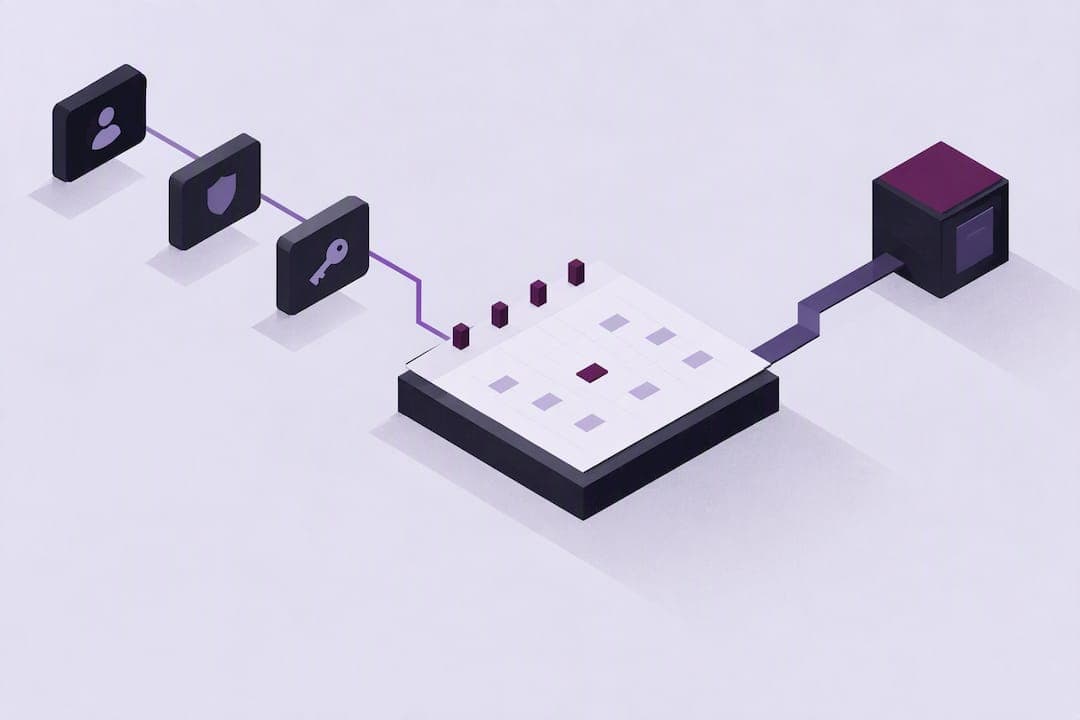
Yes, you can display live Google Calendar and Microsoft Outlook events on signage screens by connecting the calendar service and choosing an agenda or upcoming view. The fastest path is to link the account, select that view, and confirm the refresh cadence. Before publishing, check calendar permissions so events update on time and stay visible to the right screens.
TL;DR:
- Ensuring the correct calendar ID and timezone match the display location prevents delays and inaccuracies in event visibility.
- Using a service account for shared or room calendars centralizes access, reduces sign-in prompts, and simplifies deployment at scale.
- Setting a refresh interval of around 15 minutes balances timely updates with API quota limits, but shorter intervals may be needed for near-real-time needs.
- Proper permission grants, including "see all event details," are crucial to avoid common access errors during setup.
- Displaying calendars in reception areas or meeting rooms works best with simple list layouts and brief slide durations, ideally tested with long event titles first.
Table of Contents
- How to set up calendar signage step by step
- Choosing the right view and layout for your screen
- Authentication and integration details for Google and Outlook
- Refresh cadence, caching, and API limits
- Accessibility and legibility best practices for calendar displays
- Keeping calendar signage reliable at scale
- Where calendar signage earns its place and where it does not
- Managing calendar signage without the manual overhead
- Sources
- FAQ
How to set up calendar signage step by step
Before connecting anything, confirm who owns the calendar, locate its calendar ID, and decide whether viewers need read-only access or a service account for shared room calendars. A service account is the better choice for large deployments because it avoids repeated sign-ins and keeps access centralized, a method used in Google Calendar integration guidance for room-signage rollouts.
- Sign in with OAuth for a personal calendar, or create a service account for shared or room calendars.
- Grant the account read access, including "see all event details" where the platform requires it.
- Enter the calendar_id, set the timezone, and choose how many upcoming events to show.
- Pick a template and assign the feed to one or more screens.
- Test the sync before rolling it out broadly.
A short checklist keeps the setup from going wrong later:
- Confirm the calendar_id matches the exact calendar you intend to show.
- Set the correct timezone for the screen's physical location, not the account owner's.
- Filter out personal or sensitive events before publishing to a public screen.
- Schedule the display window so the calendar only appears when relevant.
Once the test sync confirms events are pulling correctly, the same configuration can be copied across additional screens with only the calendar_id changed.
Choosing the right view and layout for your screen
An agenda or upcoming view works best in lobbies and reception areas, where visitors need to see what is happening next without scanning a full week. Daily or weekly views suit meeting-room doors and internal planning boards, while a monthly view fits internal dashboards used for long-range planning rather than immediate action.
- Full-screen lists work well when the calendar is the only content on the display.
- Split-screen layouts pair the agenda with branding or a secondary feed.
- Footer or sidebar formats suit screens that mix calendar data with other signage content.
- Portrait orientation fits long lists of same-day events; landscape suits weekly grids.
Keep the event count modest and decide upfront whether long titles truncate or wrap so the layout stays predictable across days with heavier bookings.
Pro Tip: Test your layout with a day that has an unusually long event title before launch, since that is when list formats break.

Authentication and integration details for Google and Outlook
Most permission errors trace back to authentication setup, not the calendar data itself. Getting this right the first time avoids repeated troubleshooting later.
- Decide between OAuth, which suits a single personal calendar, and a service account, which suits shared or room calendars accessed by automated systems.
- Enable the Calendar API in the Google Developers Console before attempting any connection, a step detailed in developer integration instructions.
- Locate the calendar ID from the calendar's settings page, and find the equivalent identifier in Outlook's calendar sharing settings.
- Grant the connecting account "see all event details" permission for each calendar it needs to read.
- If access fails, re-share the calendar with the service account's email address or re-authorize the OAuth connection.
Any integration handling calendar data obtained through Google's APIs should also follow the Google API Services User Data Policy, which sets limits on how that data can be used and stored.
Refresh cadence, caching, and API limits
Most calendar signage apps refresh on a schedule rather than instantly. A 15-minute interval is a common default, balancing timeliness with API quota limits, as described in Screenfeed's calendar app documentation. Some setups shorten this to 5 minutes when faster updates matter more than quota conservation.
- Use polling on a fixed interval for most calendar signage needs.
- Reserve webhook-based updates for cases where near-real-time accuracy is required.
- Force a manual refresh when testing changes rather than waiting for the next scheduled pull.
- Double-check the update_interval and timezone settings whenever events appear delayed or shifted by an hour.
Accessibility and legibility best practices for calendar displays
Readable calendar signage follows a few measurable rules rather than guesswork. Contrast should meet a minimum ratio for legibility, and text height should scale with expected viewing distance, an approach known as the 10-times rule, outlined in accessibility guidance for digital signage.
Slide duration matters as much as size. A practical test is to read the slide aloud and add five seconds, avoiding anything under ten seconds for text-heavy content. Large sans-serif fonts, no flashing transitions, and captions for any spoken content round out the core rules.
Pro Tip: Read your calendar slide out loud with a stopwatch. Whatever that takes, add five seconds, and that is your minimum slide duration.

Keeping calendar signage reliable at scale
Reliable calendar signage depends on catching problems before viewers notice them. Monitoring last sync time, device online status, and API error rates helps detect a stale calendar before it becomes a visible complaint, a practice reflected in operational monitoring guidance for signage platforms.
- Check calendar_id accuracy first when events fail to appear.
- Confirm timezone settings match the screen's physical location.
- Verify the connected account still owns or has access to the calendar.
- Watch for API quota errors during high-traffic periods.
Pro Tip: Test template or design changes on a single staging screen before pushing them to the full network, so a calendar edit and a template edit never collide in production.
Where calendar signage earns its place and where it does not
Calendar signage adds the most value in meeting-room occupancy displays, event wayfinding, and staff communication boards, where a glance answers a specific question. It adds less value when used as decoration rather than a functional tool. Public-facing screens should show limited details, using busy or free indicators instead of full event titles, to protect attendee privacy. Reducing the manual work of managing dozens of screens is where automated monitoring and natural-language scheduling save the most time, since staff no longer need to check each display individually to confirm it is still syncing correctly.
Managing calendar signage without the manual overhead
This digital signage platform manages calendar signage through natural language commands instead of a traditional interface, which cuts down the setup and troubleshooting steps described above. It offers proactive display monitoring that flags sync issues before staff notice a blank or outdated screen, and its architecture supports deployments that scale from a single lobby display to a full building network.

- Connect and manage calendar feeds through plain-language commands instead of manual configuration screens.
- Get proactive alerts when a screen stops syncing or a template fails to render.
- Deploy across screens of different sizes and hardware without separate setup for each.
Visit the ImpressBox platform page to see how a calendar display would fit into your existing screens.
Sources
Developer docs: Google Calendar integration guide. Integration example: Screenly's open-source app. Accessibility guidance: WCAG-aligned signage rules.
- LANCOM Wireless ePaper Server integration Google Calendar (integration guide)
- Digital signage accessibility: WCAG compliance and best practices
- Calendar Digital Signage Content | Screenfeed
FAQ
Can I show multiple calendars on one screen?
Yes, most calendar signage setups support combining several calendar feeds into one view, provided each calendar_id is added and permissions are granted for all of them. Layout adjustments, such as splitting the screen or stacking agendas, help keep multiple feeds readable.
Why do my calendar events show up late?
Delayed events are usually caused by the refresh interval, which is commonly set to 15 minutes by default according to Screenfeed's calendar documentation. Forcing a manual refresh or shortening the update_interval can reduce the delay if near-real-time accuracy is needed.
Why am I getting a permission error when connecting my calendar?
Permission errors typically happen when the connecting account, whether OAuth or a service account, has not been granted "see all event details" access to the calendar, a requirement noted in Google Calendar integration documentation. Re-sharing the calendar with the correct account email or re-authorizing the connection usually resolves it.
Can I display a Power BI dashboard alongside a calendar on the same signage?
Yes, dashboards are often shown on signage by running a browser in full-screen mode on a mini PC or Android TV box, or by publishing the dashboard to the web, based on community guidance on Power BI display methods. This runs separately from the calendar feed but can share the same screen through a split layout.